
Record sound from your PC
Audacity
Download Audacity installer and install the program.
If you want to save the sound you recorded in MP3 format, you have to download and install LAME MP3 encoder (Installer Package for Windows).
Once you got the software installed, it's time to do a test recording.
Fire up Audacity. Select Windows WASAPI as audio host, Select your speakers (loopback) as recording
device and your speakers as playback device.
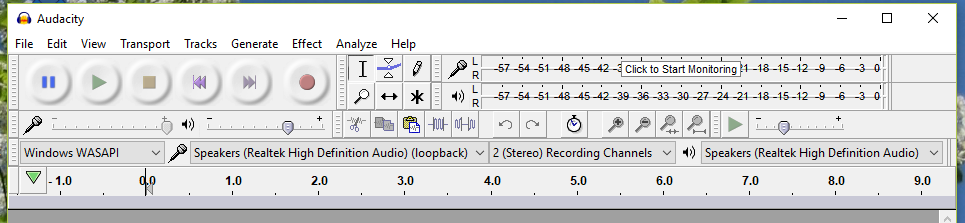
When you're using this method you're recording whatever audio output is generated by your audio chipset so you can record anything, but depending on the source of the audio output, there might of course be better ways. For recording sound from programs it can be a great method though. The way to go about this is the same for every audio source: start Audacity, start the audio output you want to record and record it using Audacity. In this example, let's record some audio output from YouTube.
Start a web browser and open YouTube web site.
Start a video.
Switch to Audacity and click the record button.
Once you're recorded what you want, click the stop button in Audacity.
In Audacity, click File in the top menu.
In the menu that appears, click Export Audio... option
Select folder where you want to save the recording, name the file and select the file type to use when saving the recording. Click the Save button.
If you want to, type in some info about the sound recording. Click OK button. The sound recording is saved in the selected folder.
Source:
How to Record the Sound Coming From Your PC (Even Without Stereo Mix)
Stereo Mix
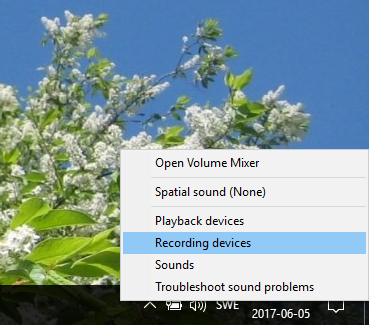

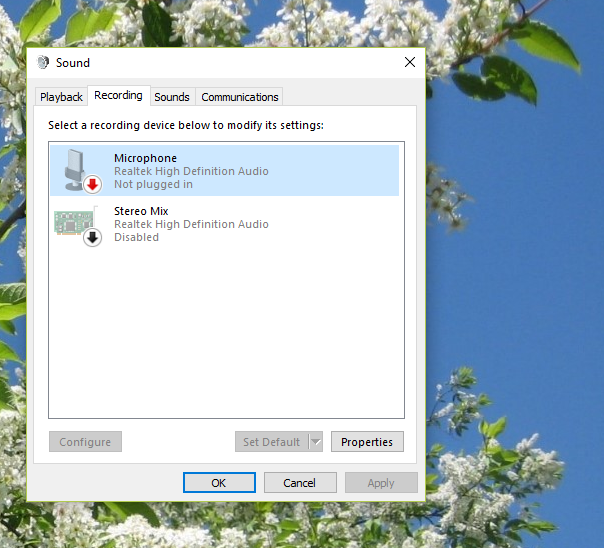
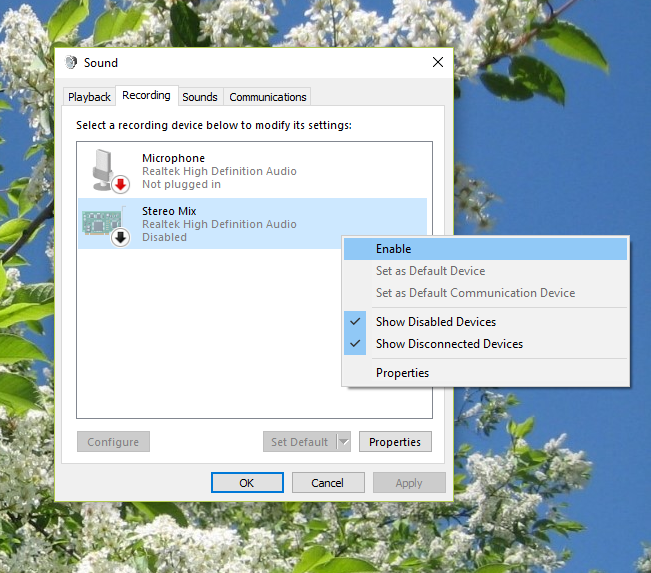
Source:
How to Enable “Stereo Mix” in Windows and Record Audio from Your PC